Optimizing the display:
1. Your display should be
set to its maximum resolution and 32-bit color for optimum text and image
rendering. Right click on your empty desktop and select
Personalize
and
Display
to verify highest resolution and color quality.
2. If your text appears small
at maximum resolution, click
Set custom text size (DPI) and increase your
DPI
setting from 96 to 120. The default Microsoft Windows setting is 96
DPI.
3. MicroCFD Virtual Wind Tunnel
was designed for 120 DPI, and all its windows will be resized to 80% when run
at 96 DPI. The 800x600 wind tunnel will only be displayed at 640x480
at 96 DPI, and the one-to-one mapping between flow cell and pixel will be
lost.
4. A 96 DPI setting should only
be used if the maximum screen resolution is less than 1040x780. This
will ensure that the main window can be seen in its entirety on smaller
displays.
Setting up a new test:
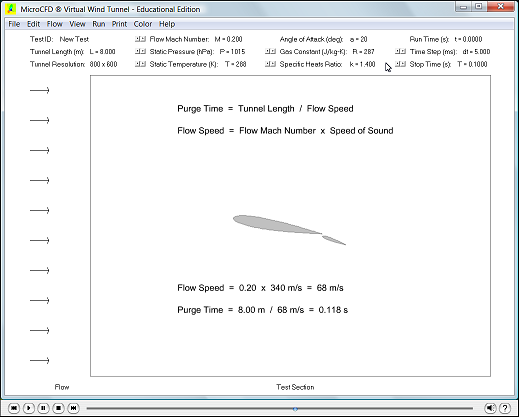
1. Select
New Test
from the
File
menu, if a previous test is loaded.
2. Set Tunnel Length, flow
parameters, gas properties, simulation Time Step and Stop Time, or use the
preset values. The Tunnel Length should be about four to five times the Model
Length for slender shapes. For blunt shapes, the tunnel height should be about
six times the model height.
3. Select
Load Shape from the
File
menu to load a basic shape, an airfoil, or a custom designed shape. Shapes
that extend beyond the tunnel dimensions are automatically scaled and centered
upon loading, but can be resized and repositioned afterwards.
4. The Tunnel Coordinate System
(TCS) is located in the lower left corner, with the x-axis pointing to the
right and the y-axis pointing up. The height of the tunnel is 75% of its
length. If the Tunnel Length is set to 8.00 (m), the height would be 6.00 (m),
and any shape whose coordinates fall within 0 ≤ x ≤ 8 and 0 ≤ y
≤ 6 can be loaded directly, without scaling.
5. A shape that is not
scaled and centered upon loading cannot later be modified. Proceed with
Set Shape from the
Edit
menu, then load another shape, or continue with step 8.
6. For scaled and centered
shapes, one can select Modify Shape from the
Edit
menu to move, resize, or rotate the currently loaded shape. For large step
increments use the
Page Up / Page Down
keys, to maximize or minimize a modifier use the
Home / End
keys.
7. The position of a
scaled shape is now measured from the tunnel center to the center of the
shape. The shape center point is the arithmetic mean of all its points. When
finished, click
Done
and select Set Shape from the
Edit
menu.
8. Place a blue seed pixel
within the interior of your set shape through “point and click”. Select
Fill
Shape from the
Edit
menu to fill the interior of the shape. Repeat if not completely filled.
9. To set up a multi-element
configuration repeat steps 3 through 8. Although one can build a composite
shape through merging of individual shapes, shape overlap should be avoided.
10. Select
Create Boundary from the
Edit
menu. For multi-element configurations, all shapes have to be loaded, set, and
filled before the boundaries can be created.
11.
Select
Stability Margin
from the
Flow
menu and increase to
Medium
or
High
if the shape is blunt or the Flow Mach Number is below 0.75. Increased
Stability requires longer computation times.
12. To
create a boundary layer effect, select
Surface Model from the
Flow menu and
check
Viscous. Otherwise leave the surface boundary
Inviscid (consistent with
the inviscid flow model).
13.
For 2-D flow verify that
Axisymmetry from the
Flow menu is not selected. By
checking
Ground Effect, the tunnel bottom will act as a ground plane, which
also disables axisymmetry.
14.
Select
Axisymmetry only for bodies of revolution. When checked, the tunnel
bottom is the symmetry axis for the revolved shape. Axisymmetry selection
disables ground effect.
15. For a vertically repeating
2-D geometry, such as an airfoil cascade, select
Cascade Loop
to connect the upper and lower tunnel boundaries. Assure consistent spacing
across boundaries.
16. Select
Save Setup
from the
File
menu to save all your preliminary work.
Running a new or saved test:
1. Before running a test,
select
Automatically…
from the
Run
menu and specify which tasks, if any, you want to be performed every time the
color maps are updated (each Time Step):
• Check
Save Slides
if you only want to save the color maps and flow parameters.
• Check
Save Frames
if you want to save all flow data (equivalent to
Save Test).
• Check
Print Frames,
if you want all output sent to a printer in Landscape Orientation.
2. Select the
Processor which
best fits your hardware and computational needs. GPU processing is only
available if a CUDA enabled graphics card from NVIDIA ® is installed in your
computer.
3. To start a newly set up
test, click Start Test from the
Run
menu. When processing on the CPU, a pop-up clock at the top of the screen
displays the current simulation Run Time and CPU Time.
4. To start a previously saved
test, select
Load Test from the
File menu and select a test to be loaded
(ensure that the filename carries the ".tst" extension if typed in manually).
5. If the test was
completed (Run Time = Stop Time), select
Continue Test
from the
Run
menu, in order to increase the simulation Stop Time and to modify the Time
Step. Select
Start Test.
6. While a test is running,
both the main window and the pop-up clock, if shown, can be minimized to
perform other tasks. The pop-up clock is not shown when processing on the GPU.
7. A test in progress can
be stopped by selecting
Suspend Test
from the
Run
menu. In order to continue, select
Start Test
from the
Run
menu again. The color map is updated every Time Step.
8. The pop-up clock and main
window may appear to freeze occasionally, depending on other operating system
tasks. Upon completion of the test, the main window will return to normal.
9. When the computation is
finished, select
Save Test
from the
File
menu to save the result. If steady state has not yet been reached (color maps
are still changing), go back to step 5.
NOTE:
Screen Savers use significant CPU / GPU time while the program is computing and should be
disabled! Select an automatic shut-off time for your display (15-30 minutes)
or turn it off manually.
Choosing a proper Time Step and
Stop Time:
1. The actual integration time
step is computed internally based on the CFL condition of the flow and the
selected
Stability Margin
in the
Flow
menu. Only the simulation time displayed in the pop-up clock advances in
actual integration time steps.
2. The Time Step selected by
the user should be a large multiple of the actual integration time step. It
specifies the time elapsed between graphical updates of the flow color maps.
3. A lower-bound estimate for a
Time Step
dt is one-tenth the ratio of Tunnel Length L and flow
speed V, dt ~ 0.1 L / V, or the time it takes for
the air to advance 10% through the wind tunnel.
4. The flow speed V is
given by V = M·a, where M is the flow Mach number,
and a is the free stream speed of sound. For air at room temperature,
k = 1.4, R = 287J/kg·K, and T = 288K, the free-stream
speed of sound has the well-known value of a = SQR(k·R·T) =
340m/s.
5. For M = 0.9 and L
= 8.0m, V = 306m/s, and dt ~ 0.0026s = 2.6ms, thus any
Time Step
between three and five milliseconds would be appropriate to show the flow
development.
6. In the transonic regime (M
= 0.8 to 1.2), the flow reaches steady state after the tunnel has purged
itself three times. A sufficient
Stop Time would be T ~ 3·L /
V, thus T ~ 0.080s in this case.
7. For subsonic (M <
0.8) and supersonic flow (M > 1.2), steady state is reached after the
tunnel has purged itself twice. Overall computation times decrease with
increasing Mach number.
Interpreting the results:
1. After a test is
completed or has been manually stopped, the color map can be changed to a
different flow property. Select
Property
from the
View
menu and choose
Mach #,
Density,
Pressure, or
Temperature
from the submenu.
Streamlines
can also be plotted.
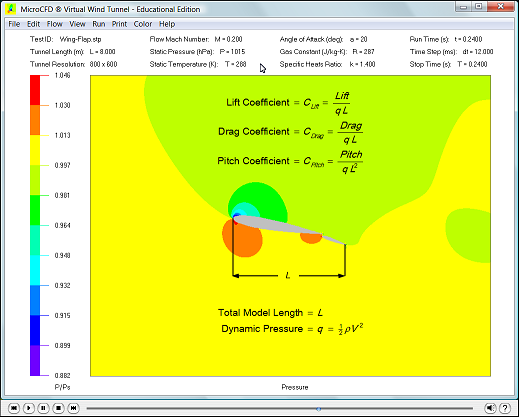
2. All color maps show a
non-dimensional scale. The absolute values of local pressure, density, and
temperature have been divided by their free stream values. To obtain the full
range of absolute values, in their respective units, select
Statistics from
the
View
menu.
3. Also available in the
Statistics window is data on lift, drag, and pitching moment. For 2-D flow,
all forces and moments, whether dimensional or non-dimensional, are per unit
depth. For example, lift and drag are given in units of force per unit depth
(N/m).
4. All 2-D aerodynamic
coefficients are based on the total length of the model. For a model length
L and a free stream dynamic pressure q = ½ Rh·V2,
lift, drag, and pitching moment are non-dimensionalized as follows: Clift
= Lift / (q·L), Cdrag = Drag / (q·L),
Cpitch = Pitch / (q·L2).
5. The pitching moment is
computed with respect to the Aerodynamic Coordinate System (ACS) located at
the tunnel center. A positive pitching moment acts counterclockwise. The line
of action of the resultant aerodynamic force is given by the equation,
x·Lift - y·Drag = Pitch, and can be plotted by selecting
Force Line
from the View menu.
6. For axisymmetric flow, lift
and pitching moment are identically zero, the TCS and ACS coincide, and the
Force Line runs along the symmetry axis. The drag is 3-D and is
non-dimensionalized by the free stream dynamic pressure, q = ½ Rh·V2,
and by the frontal area of the model, A = pi·R2,
where R is the largest model radius, measured from the symmetry axis.
Creating a custom shape file:
1. Shapes are saved in ANSI
text format as a sequence of points connected in a closed loop. The following
will describe how to create your own shape file using a simple text editor
such as Microsoft Notepad. (A word processor in text mode is even more
suitable, since it can also display hidden characters such as tabs and return
keys).
2. After starting Microsoft
Notepad, Select
Open…
from the
File
menu.
3. Change the current
folder to
…\MicroCFD\Shapes\Basic\…
4. Select
Files of type: All Files (*.*)
in the drop-down box.
5. Select the file
Square.shp,
and click
Open.
6. You should see the following
on your Notepad:

• The first row simply
contains the string "shp", which is the shape file identifier.
• The second row should
read "4", which is the number of points to follow, starting at 0.
• The next five rows
contain the data points, with x and y values separated by tabs.
• Points 0 through 3
describe a square; point 4 is identical to point 0.
7. To define your own shape,
simply modify the second row (N number of points), followed by the x
and y coordinates of points 0 through N, with 0 and N
being identical (closing the loop).
8. When done, select
Save As…
from the
File
menu and change the current folder back to
…\MicroCFD\Shapes\Basic\…
9. Enter the file name
Custom.shp. Select
Save as type: Text Documents (*.txt)
with
Encoding: ANSI
and Click
Save. Older versions of Notepad have no encoding option but
save in ANSI.
10. For multi-element
configurations, separate shape files need to be created, which have to be
loaded one at a time during setup.
11. Geometries can also be drawn with the free
nanoCAD software and then be exported as shape files with a
plug-in.
NOTE:
A decimal point must be represented by a period and not a comma. For example,
one-tenth should be written as 0.1 and not 0,1. Otherwise your shape file may
not load properly.
Defining custom colors:
1. With your display set at
24-bit color or higher, each RGB (Red, Green, Blue) component is represented
by exactly one byte, which ensures proper rendering of the MicroCFD default
colors. At lower settings, some of the default colors can only be presented
through dithering, a process of mixing pixels of different colors from
a limited (16-bit) color palette.
2. The color plots in MicroCFD
Virtual Wind Tunnel will not display properly, if dithered colors are used.
Either use a 24-bit color setting in your display properties, or change the
colors to match the system palette. Another reason to change colors is to make
them more distinguishable when printed. Sometimes two colors can be clearly
differentiated on the display, yet they may look almost identical on paper.
3. To change colors, select
Custom… from the
Color menu and adjust each color separately by modifying its RGB
components or load a Grayscale. When done, select
Save Colors
from the
File
menu to save your custom colors. Select
Close
from the
File
menu for the new colors to take effect. Closing the color window in its upper
right corner will leave the current colors unchanged.
4. Although colors can be
changed at any time, any previously saved slides remain fixed in their color
composition and when reloaded will always display their original colors.
5. MicroCFD Virtual Wind Tunnel
will always start up with its default colors, and custom colors that were
saved have to be reloaded each time the application is run.
Creating flow animations:
1. The development or
periodicity of a flow can be viewed by turning a time sequence of slide images
into an animated GIF file (*.gif) with third party software. The GIF Movie Gear from
www.gamani.com
is an excellent tool and can be used free on a trial basis.
2. Smooth animations contain a
minimum of 100 slide images per tunnel purge time, thus the
Time Step dt,
based on Tunnel Length L and flow speed V, should be dt ≤
0.01 L / V.
3. Prior to starting the
test, select
Automatically…
from the
Run
menu and check
Save Slides,
which will save the color maps of Mach #, Pressure, Density, and Temperature
as bitmap files (*.bmp) into four separate subfolders within the application
Slides folder (…\MicroCFD\Slides\...).
4. When the test is completed,
open each of the subfolders with GIF Movie Gear, or similar software,
and select all the bitmap files. Click
OK
and the GIF animation will be created.
5. The animated GIF file will
be comparable in size to a single BMP file, even for 100 slides or more, due
to the digital compression employed in the GIF file creation.
NOTE:
If MicroCFD is installed in the Program Files folder, Windows may redirect any files
that the application saves into its subfolders to a different location, which makes it
difficult to retrieve such files with other applications, including Windows
Explorer.